Managing your Deriv partner wallet payouts
Learn how partner commissions settle daily in your partner wallet and how to safely execute external withdrawals.
Your Partner's Wallet is where your commission earnings accumulate. Every time your referred clients trade, the commission generated flows into this wallet as a real-time deposit. From there, you can withdraw it to an external payment method or transfer it to your Deriv Trading Wallet. Understanding how this system works — and the operational rules that govern it — helps you manage your cash flow effectively and understand what to expect.
This article explains how capital enters your wallet, how to withdraw it, and what to verify before you initiate a transfer.
Quick summary
- Your commission earnings accumulate in your Partner's Wallet as individual Deposit entries, visible on the Wallets page.
- The Wallets page shows your total balance, recent transactions, and two action buttons: Withdraw and Transfer.
- External Withdrawals: To withdraw funds, you select an available payment method, input the amount, and verify your account ownership with a 6-digit security code sent to your registered email.
- Payment gateways: Available channels include global e-wallets and cryptocurrency networks, each defined by distinct minimum and maximum withdrawal thresholds.
- Transfer restrictions: Internal transfers are strictly one-way. Funds moved from your Partner's Wallet to your Trading Wallet cannot be reversed.
- Liquidity metrics: The payout screen displays three figures: Current Balance, Pending Payout(s), and Available Balance. Your Available Balance figure dictates what you can withdraw immediately.
Useful terminology
- Partner's Wallet: The account that holds your accumulated partner commission earnings. It remains structurally isolated from your trading accounts.
- Trading Wallet: A separate user wallet dedicated exclusively to personal trading activities.
- Deposit: In your partner overview panel, a Deposit denotes an incoming commission credit added to your balance—not a client's funding action.
- Withdraw: The process of moving settled funds out of the Deriv ecosystem into an external e-wallet or cryptocurrency address.
- Transfer: The internal, permanent movement of capital from your Partner's Wallet to your personal Trading Wallet.
- Current Balance: The gross total of all funds sitting inside your partner wallet at the present moment.
- Pending Payout(s): Funds that are still being processed and haven’t been deducted yet.
- Available Balance: The net amount you can withdraw right now, calculated as your Current Balance minus Pending Payouts.
How does the Deriv partner commission payout schedule work?
Deriv partner commissions accrue continuously in real time rather than as a single lump-sum monthly payout. Earnings settle into your Partner’s Wallet as individual Deposit entries throughout the day, directly reflecting the ongoing trading activities generated by your referred clients.
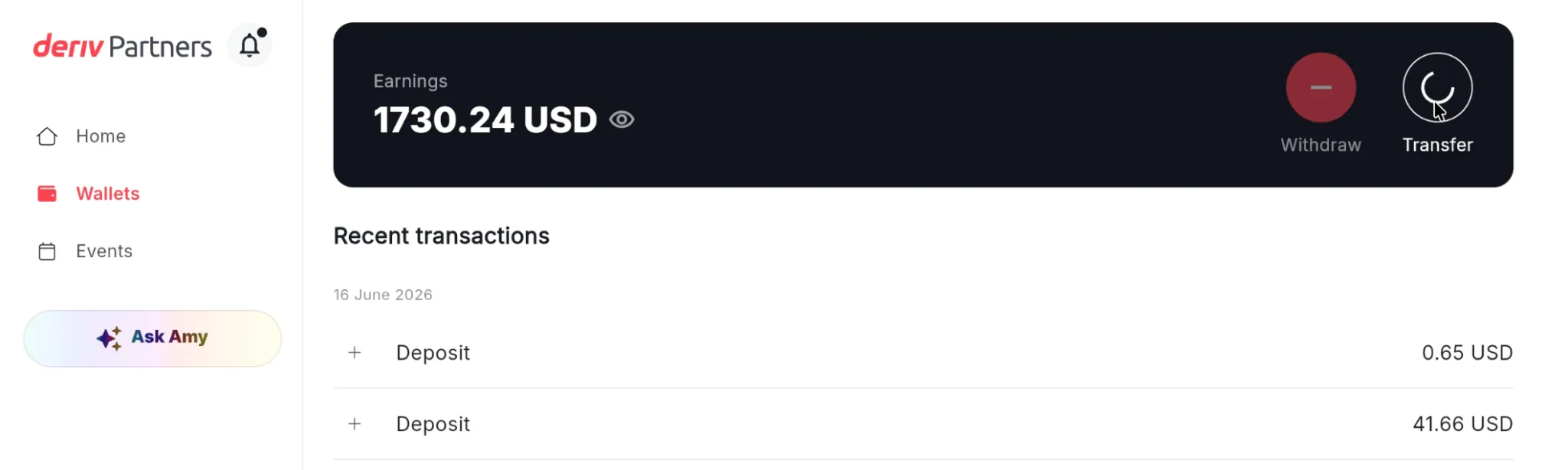
Illustrative figures only — not verified or representative of typical earnings.
Multiple commission entries can appear on your dashboard on a single day. Each entry is simply a separate payment. These payments come from different clients or different financial markets, which process at varying times. Because these amounts depend directly on how active your network is, individual deposit sizes will vary. Consequently, your balance updates throughout the month.
The Wallets page
Navigate to Wallets in the left-hand menu to open your wallet overview.
The page has three main elements:
Earnings banner — the banner at the top showing your total wallet balance in USD. The Withdraw and Transfer actions are located here.
Recent transactions — a date-grouped list of every transaction in your wallet. All entries show a + icon (indicating money coming in) for Deposits, and a different icon for Transfers. Amounts are displayed in USD.
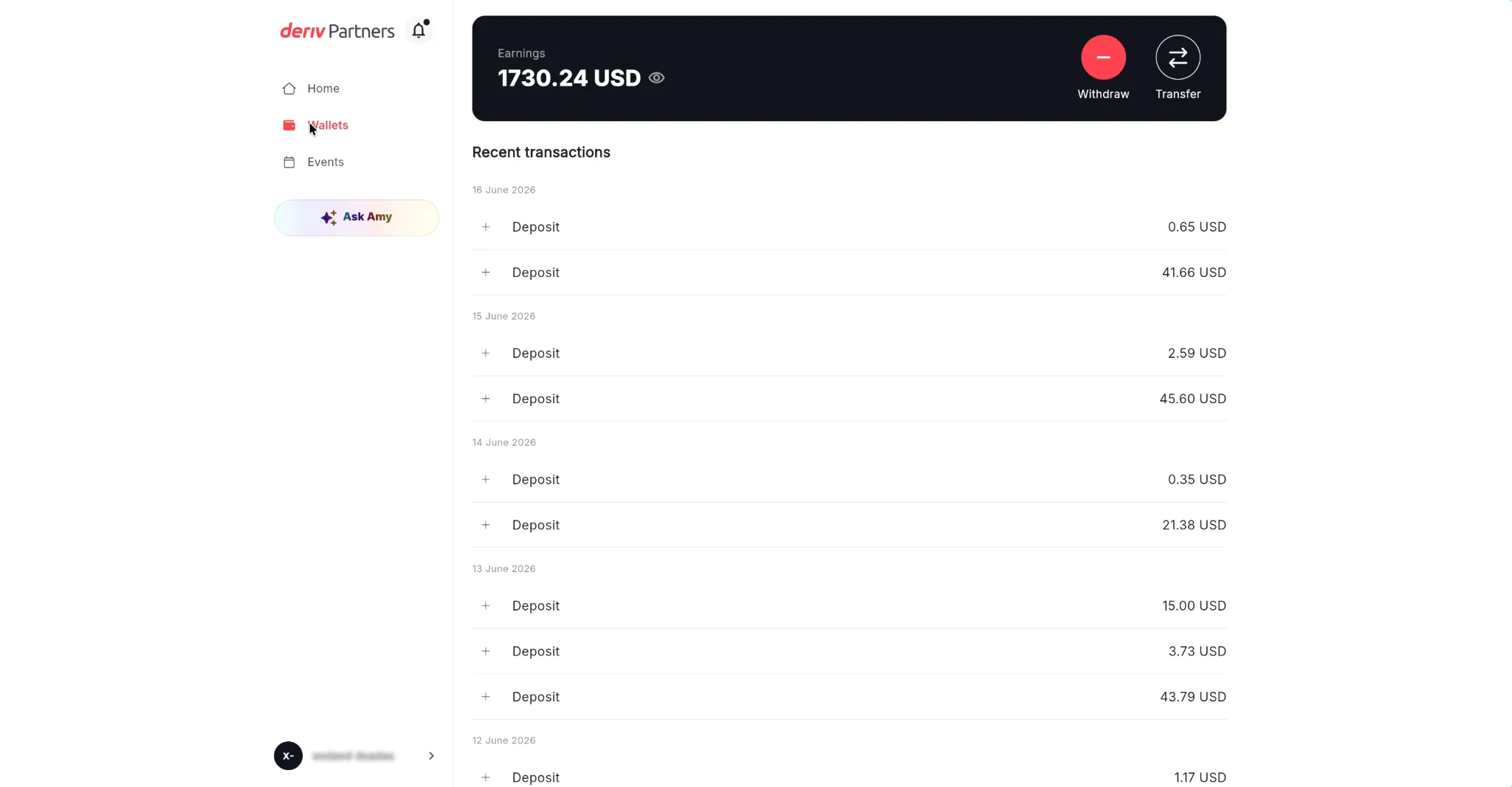
Illustrative figures only — not verified or representative of typical earnings.
What is the difference between your Deriv partner wallet vs trading wallet balances?
When you click Withdraw, a modal opens showing three figures at the top:
- Current Balance: The total amount of funds physically present in your Partner's Wallet at that time.
- Pending Payout(s): Outbound requests currently being verified by back-office systems. When this metric displays -$0.00, your queue is clear.
- Available Balance USD: The figure that determines your immediate withdrawal limit. Always verify the Available Balance figure before requesting a withdrawal. If it is lower than your total balance, the difference represents capital currently being processed.

Illustrative figures only — not verified or representative of typical earnings.
Always verify the Available Balance figure before requesting a withdrawal. If it sits below your total balance, the variance represents capital that is still being processed.
How to withdraw affiliate commission from your Deriv partner wallet?
Withdrawals are processed from the Wallets page.
Step-by-step
- Navigate to the left-hand menu and select the Wallets page.
- Click the red Withdraw button located inside the primary earnings banner.
- Review the Available Balance metric at the top of the interface window.
- Input your desired withdrawal amount in the field provided (Step 1).
- Choose an authorised global payment method from the list (Step 2).
- Check your registered email address for an automated security email, and enter the provided 6-digit verification code to confirm the payout.

Managing payment gateways
The payout screen automatically reveals the specific methods available to your account based on your location. Every option lists its standard processing duration alongside its explicit minimum and maximum transaction caps. Select the option that fits your preferences and withdrawal amount.
If your withdrawal screen does not show any available payment methods, it may be due to temporary maintenance or layout rules for certain payment types; if this happens, please contact our help centre or your account manager for assistance.
How to transfer funds internally from your Partner Wallet to your Trading Wallet
The Transfer option moves funds from your Partner's Wallet into your Deriv Trading Wallet — useful if you want to use your partner earnings to fund your own trading.
How to transfer
- Open the Wallets panel and select the Transfer icon within the main banner.
- Verify the transfer details displayed on screen:
- From: Partner's Wallet (displays your current balance).
- To: Trading Wallet (displays your active trading balance).
- Specify the exact amount you intend to transfer.
- Click Transfer to confirm.

Remember, transfers are one-way and cannot be reversed. Once funds leave your Partner's Wallet and enter your Trading Wallet, they cannot be moved back. If you intend to withdraw earnings to an external payment method, it is best to do that before transferring any amount to your Trading Wallet.
Strategic cash flow planning for global partners
When managing your earnings, here are a few practical points to keep in mind:
- Earnings accumulate gradually: Because your commission updates continuously based on client trading volume, there is no need to wait for a single monthly payout date. Your net available balance is ready to withdraw as soon as it clears.
- Minimum limits apply: If your balance falls below the minimum requirement of your active payment methods, you will need to wait for more commission to settle before initiating an outbound transfer. For standard global e-wallets (such as AstroPay, Jeton, volet, or AirTM), this minimum floor starts at $5.
- Keep your contact details secure: Because every withdrawal requires a 6-digit verification code sent via email, losing access to your primary inbox will prevent you from confirming a withdrawal. Ensure your security settings are up to date before making extraction requests.
- Plan your funds in advance: If you intend to use your earnings for both personal expenses and trading, it is helpful to calculate your numbers beforehand. Withdraw your personal funds first, transferring only the capital you are prepared to use for trading.
By monitoring your dashboard and following these simple rules, you can manage your earnings clearly and process your withdrawals efficiently.

Quiz
FAQs